고정 헤더 영역
상세 컨텐츠
본문
1. GameMode
게임모드는 게임의 규칙과 흐름을 총괄하는 핵심 클래스이다.
싱글 플레이에서는 서버와 클라이언트의 개념이 나뉘지 않으며 게임 전체를 직접 제어하는 역할이다.
어떤 Pawn 또는 Character를 사용할지, 어떤 PlayerController를 사용할지, 게임의 전반적인 승패 조건 및 점수 계산 방법 등을 어떻게 설정할지 게임 플레이의 가장 핵심적인 로직을 담당함.
GameMode의 주요 역할
캐릭터 생성(Pawn, Character 스폰)
- 게임이 시작될 때 DefaultPawnClass로 플레이어 캐릭터 생성
- 생성된 캐릭터를 플레이어가 조작할 수 있도록 PlayerController와 연동해주는 역할을 함
입력 컨트롤러 설정 (PlayerController 지정)
- PlayerController를 지정해서 입력 연결(키보드, 마우스, 게임패드 등)
게임 규칙 관리
- 점수, 시간, 라운드, 난이도, 승패 조건 등 게임 전반의 규칙을 정의하고 유지
- 게임의 라운드가 종료되거나 승리 혹은 패배가 확정되면 게임 오버 화면을 띄우거나 다음 레벨로 전환하는 식의 후속 처리
상태 관리(GameState / PlayerState)
- GameState는 게임 전체 흐름을 관리
- PlayerState는 캐릭터별 정보 등 상태 관리
GameMode와 GameModeBase
GameMode
- 멀티플레이 기능 포함 (세션, 플레이어 연결 등) 및 싱글 플레이도 문제 없이 사용 가능
- GameState, PlayerState 연동 가능
GameModeBase
- 가볍고 단순한 구조이며 멀티 플레이 기능 없음
- 간단한 싱글플레이 게임 제작 및 직접 멀티플레이 로직 구현할 때 주로 사용
GameMode 생성 및 클래스 적용
GameMode 생성
ㅇ너리얼 에디터 상단 툴바 클릭 > Tools 클릭 > New C++ Class 클릭 > GameMode 클릭 > 클래스 이름 지정 후 생성
GameMode 클래스 적용
Content Browser > GameMode 클래스 우클릭 > Create Blueprint Class based on SpartaGameMode 클릭 >
BP_클래스이름 지정 후 생성 >
상단 툴바 > 에디터 클릭 > Project Settings 클릭 > Maps & Modes >
Default GameMode를 생성한 블루프린트 클래스로 지정 >
상단 툴바 > Window 클릭 > World Settings 클릭 > GameMode Override를 생성한 블루프린트 클래스로 지정
GameMode 기본 설정
World Settings의 Selected GameMode에 있는 기본 설정
Default Pawn Class : 플레이어 캐릭터
HUD Class : 화면에 표시되는 UI
Player Controller Class : 캐릭터의 입력 처리, 카메라 제어 및 UI와의 상호작용
Game State Class / Player State Class : 게임 전역 및 캐릭터별 상태 관리
Spectator Class : 관전자 Pawn 클래스 지정 (일반 플레이어와 이동 방식, 카메라 제어가 다름)
2. Pawn과 Character 클래스
Pawn 클래스
플레이어 또는 AI가 조종할 수 있는 가장 상위 클래스이며 이동, 점프, 충돌, 중력, 네티ㅡ워크 이동 등 기본 제공이 없으며, 자유롭게 직접 구현이 가능하고 비행기, 드론, 카메라 등 특수한 로직을 구현할 때 적합함
Character 클래스
Character 클래스는 Pawn 클래스르 상속 받아 만들어진 자식 클래스중 하나이며 기본적으로 UCharacterMovementComponent를 포함하고있음
이동, 점프, 충돌, 중력, 네트워크 이동 등 기능이 이미 구현되어 있어서 사람 캐릭터를 구현할 때 적합함
미리 정의된 대표적인 함수들(MoveForward, MoveRight, Jump 등)이 존재 하므로 빠르게 테스트하고 구현할 수 있음
Character 클래스 생성 및 구조
Character 클래스 생성
언리얼 에디터 상단 툴바 클릭 > Tools 클릭 > New C++ Class 클릭 > Character 클릭 > 클래스 이름 지정 후 생성 >
Content Browser > 생성한 캐릭터 클래스 우클릭 > Create Blueprint class based on SpartaCharacter 클릭 >
BP_클래스이름 지정 후 생성
Character 클래스 구조
생성한 BP 클래스 더블클릭 > Components에 기본 구조
CapsuleComponent
- 충돌 범위를 지정하는 콜리전 컴포넌트, 캐릭터 크기/범위 설정
ArrowComponent
- 캐릭터 방향 표시 (디버깅용)
SkeletalMeshComponent
- 캐릭터 모델, 애니메이션 담당
CharacterMovementComponent
- 이동, 점프, 중력, 네트워크 동기화 등 캐릭터 움직임 관련 핵심 로직 기능 담당
스켈레탈 메시
내부에 뼈대가 있는 캐릭터용 3D 모델.
이 뼈대는 부모-자식 관계로 연결되어 있으며, 뼈대의 움직임에 따라 외형도 함께 움직임
걷기, 뛰기, 물리적인 효과 등 애니메이션 구현에 사용
스켈레탈 메시 적용 및 설정
스켈레탈 메시 적용
언리얼 에디터에서 생성한 BP_캐릭터클래스를 열기 > Mesh > Skeletal Mesh 설정
스켈레탈 메시 설정
SKM_Manny나 SKM_Quinn 모델은 Y축을 전방으로 사용하므로,
Mesh 컴포넌트 > Details > Rotation > Yaw(Z축) 값 -90도로 설정 >
뷰포트 > Mesh 컴포넌트 선택 > Location 값을 캐릭터의 발이 캡슐 바닥에 닿도록 설정 >
캡슐 컴포넌트의 의 Radius / Height로 충돌 범위 설정
3. 카메라 및 GameMode 섲ㄹ정
SpringArm 및 CameraComponent 추가
SpringArm
- 캐릭터와 카메라의 거리 유지 및 충돌시 자동으로 위치를 조정해줌
CameraComponent
- 실제 화면을 보여주는 카메라이며 스프링암과 붙어서 함께 움직임
UPROPERTY(VisibleAnywhere, BlueprintReadOnly, Category = "Camera")
- 수정은 C++ 코드로만 수정 가능 및 블루프린트에서는 보기만 가능(블루프린트 수정 불가)
// SpartaCharacter.h

#pragma once

#include "CoreMinimal.h"
#include "GameFramework/Character.h"
#include "SpartaCharacter.generated.h"

// 전방 선언
class USpringArmComponent; // 스프링 암 관련 클래스
class UCameraComponent; // 카메라 관련 클래스

UCLASS()
class SPARTAPROJECT_API ASpartaCharacter : public ACharacter
{
	GENERATED_BODY()

public:
	ASpartaCharacter();

protected:
	// 스프링 암 컴포넌트 생성
	UPROPERTY(VisibleAnywhere, BlueprintReadOnly, Category = "Camera")
	USpringArmComponent* SpringArmComp;
	// 카메라 컴포넌트 생성
	UPROPERTY(VisibleAnywhere, BlueprintReadOnly, Category = "Camera")
	UCameraComponent* CameraComp;
};
#include "Camera/CameraComponent.h"
#include "GameFramework/SpringArmComponent.h"
- 스프링암, 카메라 구현할 때 인클루드 해주기
bUsePawnControlRotation
true - 컨트롤러의 회전을 따라감
false - 부모의 회전을 따라감
// SpartaCharacter.cpp

#include "SpartaCharacter.h"
#include "Camera/CameraComponent.h"	// 카메라 구현시 인클루드
#include "GameFramework/SpringArmComponent.h"	// 스프링암 구현시 인클루드

ASpartaCharacter::ASpartaCharacter()
{
    PrimaryActorTick.bCanEverTick = false;

    // 스프링 암 생성
    SpringArmComp = CreateDefaultSubobject<USpringArmComponent>(TEXT("SpringArm"));
    // 루트 컴포넌트(CapsuleComponent)에 부착
    SpringArmComp->SetupAttachment(RootComponent);
    // 캐릭터와 카메라 사이의 거리 기본값 300으로 설정 (3인칭 시점)
    SpringArmComp->TargetArmLength = 300.0f;
    // 컨트롤러(마우스) 회전에 따라 스프링 암이 회전하도록 설정(카메라도 같이)
    SpringArmComp->bUsePawnControlRotation = true;

    // 카메라 컴포넌트 생성
    CameraComp = CreateDefaultSubobject<UCameraComponent>(TEXT("Camera"));
    // 스프링 암의 소켓 위치에 카메라를 부착(스프링 암을 따라서 이동)
    CameraComp->SetupAttachment(SpringArmComp, USpringArmComponent::SocketName);
    // 카메라의 직접 회전이 아닌 스프링 암을 따라 회전하도록 설정
    CameraComp->bUsePawnControlRotation = false;
}

void ASpartaCharacter::SetupPlayerInputComponent(UInputComponent* PlayerInputComponent)
{
    Super::SetupPlayerInputComponent(PlayerInputComponent);
}
코드 작성 후 에디터 - 블루프린트 캐릭터 클래스 열기 > Components > SpringAramComp 및 CameraComp 미세조정 후 저장
GameMode에 캐릭터 적용
DefaultPawnClass를 내가 만든 블루프린트 캐릭터 클래스로 설정해주기
// SpartaGameMode.h

#pragma once

#include "CoreMinimal.h"
#include "GameFramework/GameMode.h"
#include "SpartaGameMode.generated.h"

UCLASS()
class SPARTAPROJECT_API ASpartaGameMode : public AGameMode
{
    GENERATED_BODY()

public:
    ASpartaGameMode();	// 생성자
}
// SpartaGameMode.cpp
#include "SpartaGameMode.h"
#include "SpartaCharacter.h"
ASpartaGameMode::ASpartaGameMode()
{
// 게임시작시 기본으로 생성될 캐릭터를 ASpartaCharacter로 설정
DefaultPawnClass = ASpartaCharacter::StaticClass();
}4. PlayerController 기능 및 생성
사용자의 입력을 받아 Pawn이나 다른 오브젝트에게 동작을 명령하는 클래스이며,
입력처리와 캐릭터의 동작 로직을 분리하는 역할
입력처리 흐름
1. 키보드, 마우스 등 입력 발생
2. PlayerController가 신호를 받아서 해석
3. Pawn에게 동작 명령 전달
PlayerController의 주요 기능
입력 처리
- 키보드, 마우스, 게임패드, 터치 등 입력 관리
- Enhanced Input 시스템을 사용하면, 액션, 축 매핑을 보다 체계적으로 설정 가능
- C++에서 SetupInputComponent() 함수를 오버라이드 해서 입력 로직 구현,
블루프린트에서는 그래프를 통해 입력 로직 구현
카메라 제어 로직
- 시점 회전 및 줌 등을 처리
HUD 및 UI와의 상호작용
- 버튼 클릭, 드래그, 터치 등 UI 이벤트를 PlayerController에서 받아서 처리
Possess / UnPossess
- Pawn을 소유하거나 연결을 해제 및 교체 가능
PlayerController 생성
에디터 툴바 > Tools 클릭 > New C++ Class 클릭 >
Common Classes 목록에서 Player Controller 선택 > 클래스 이름 지정 후 생성
PlayerController를 GameMode에 적용
// SpartaGameMode.h

#pragma once

#include "CoreMinimal.h"
#include "GameFramework/GameMode.h"
#include "SpartaGameMode.generated.h"

UCLASS()
class SPARTAPROJECT_API ASpartaGameMode : public AGameMode
{
	GENERATED_BODY()

public:
	ASpartaGameMode();
};
// SpartaGameMode.cpp
#include "SpartaGameMode.h"
#include "SpartaCharacter.h"
#include "SpartaPlayerController.h" // PlayerController 클래스를 사용
ASpartaGameMode::ASpartaGameMode()
{
// 게임시작시 기본으로 생성될 캐릭터를 ASpartaCharacter로 설정
DefaultPawnClass = ASpartaCharacter::StaticClass();
// 게임시작시 사용할 PlayerController를 ASpartaPlayerController로 설정
PlayerControllerClass = ASpartaPlayerController::StaticClass();
}코드 작성 후 에디터 Content Browser에서 SpartaPlayerController 클래스를 우클릭 >
Create Blueprint Class 클릭 > BP_클래스명 지정 후 생성 > 게임 실행 >
World Outliner에서 PlayerController가 스폰되는지 확인
Enhanced Input System
입력 설정을 입력 액션 IA (Input Action)과 입력 맵 IMC (Input Mapping Context) 으로 나누어서 관리하는 시스템
IA (Input Action)
특정 동작(이동, 점프 등)을 정의하는 단위
ex) IA_Move, IA_Jump, IA_Look 등
IA 생성
Content Browser에서 Inputs 폴더 생성 후 우클릭 > Input 클릭 > Input Action 클릭 > IA_동작명 지정후 생성
IA의 속성(Value Type)
IA가 입력 동작을 발생시킬 때, 입력 값의 형태를 결정하는 옵션
Bool
- On/Off
- 점프, 공격 등
Axis1D
- 단일 축(-1~1 범위)
- 전진 후진 등
Axis2D
- 2차원 축 (X,Y 축을 동시에 처리할 때 사용)
- 캐릭터 이동 및 마우스 이동 등
Axis3D
- 3차원 축 (X, Y, Z 축을 동시에 처리할 때 사용)
- 비행기 시뮬레이션 등
Trigger
입력이 언제 실행될 지 결정하는 조건 (누름, 유지, 해제)
- Pressed Trigger : 키를 누른 순간에만 작동
- Hold Trigger : 키를 일정시간 눌렀을때 작동
- Released Trigger : 키를 뗄 때 작동
Modifier
입력 값 수정 및 보정하는 옵션 (속도, 반전 등)
- Scale : 입력 값에 일정 배율을 곱함
- Invert : 입력 값을 반전(상하 반전 카메라)
- Deadzone : 일정 임계값보다 작은 입력 무시 (게임패드, 조이스틱 미세 떨림 방지)
IA 설정
IA_Move (이동)
더블 클릭 > Details > Action >
Value Type : Axis2D(Vector2D)
IA_Jump (점프)
더블 클릭 > Details > Action >
Value Type : Digital(Bool)
IA_Look (카메라 회전)
더블 클릭 > Details > Action >
Value Type : Axis2D(Vector2D)
IA_Sprint (걷기/뛰기)
더블 클릭 > Details > Action >
Value Type : Digital(Bool)
IMC (Input Mapping Context)
IMC는 여러개의 IA를 하나로 묶는 매핑 설정 파일이며,
상황에 따라 IMC 활성/비활성 해서 입력 제어 가능
IMC 생성 및 설정
Content Browser - Inputs 폴더에서 우클릭 > Input 클릭 > Input Mapping Context 클릭 >
IMC_클래스명 지정 후 생성 후 열기 > Mappings 목록에서 IA 각각 추가 후 매핑
IA_Move
W 매핑 > Modifiers > Index 0 - Swizzle Input Axis Values > Order - XZY 로 설정
S 매핑 > Modifiers > Index 0 - Swizzle Input Axis Values > Order - XZY / Index 1 - Negate 로 설정
A 매핑 > Modifiers > Index 0 - Swizzle Input Axis Values > Order - YXZ / Index 1 - Negate 로 설정
D 매핑 > Modifiers > Index 0 - Swizzle Input Axis Values > Order - YXZ 로 설정
IA_Jump
Space Bar 매핑 > 별도로 추가 설정 필요없음
IA_Look
Mouse XY 2D - Axis 2D 매핑 - Modifiers > Index 0 - Negate - Y축만 체크(X, Z축 체크 해제)로 설정
IA_Sprint
Shift 매핑 > 별도로 추가 설정 필요없음
Swizzle Input Axis Values
- 입력 축 값을 원하는 축으로 재배치 가능
PlayerController에서 IMC 활성화
// SpartaPlayerController.h

#pragma once

#include "CoreMinimal.h"
#include "GameFramework/PlayerController.h"
#include "SpartaPlayerController.generated.h"

class UInputMappingContext; // IMC 관련 전방 선언
class UInputAction; // IA 관련 전방 선언

UCLASS()
class SPARTAPROJECT_API ASpartaPlayerController : public APlayerController
{
	GENERATED_BODY()

public:
	ASpartaPlayerController();

	// 에디터에서 세팅할 IMC
	UPROPERTY(EditAnywhere, BlueprintReadWrite, Category = "Input")
	UInputMappingContext* InputMappingContext;
	// IA_Move를 지정할 변수
	UPROPERTY(EditAnywhere, BlueprintReadWrite, Category = "Input")
	UInputAction* MoveAction;
	// IA_Jump를 지정할 변수
	UPROPERTY(EditAnywhere, BlueprintReadWrite, Category = "Input")
	UInputAction* JumpAction;
	// IA_Look를 지정할 변수
	UPROPERTY(EditAnywhere, BlueprintReadWrite, Category = "Input")
	UInputAction* LookAction;
	// IA_Sprint를 지정할 변수
	UPROPERTY(EditAnywhere, BlueprintReadWrite, Category = "Input")
	UInputAction* SprintAction;
};
// SpartaPlayerController.cpp
#include "SpartaPlayerController.h"
ASpartaPlayerController::ASpartaPlayerController()
// 멤버 변수들을 nullptr로 초기화
: InputMappingContext(nullptr),
MoveAction(nullptr),
JumpAction(nullptr),
LookAction(nullptr),
SprintAction(nullptr)
// 아직 에디터에서 값이 할당되지 않아서
// 이상한 값이 들어갈 수도 있으니 기본값을 nullptr로 초기화
{
}코드 작성 후 에디터 > 블루프린트 플레이어 컨트롤러 클래스 열기 > Details > Input >
C++에서 생성한 변수들이 에디터에 노출됐는지 확인
IMC - IMC_Character / 각 IA 지정 및 컴파일 저장 > IMC 활성화 코드 작성
Enhanced Input System은 Local Player Subsystem을 통해 IMC를 활성화 및 비활성화함
PlayerController의 BeginPlay()에 IMC를 등록하면 입력이 적용
Local Player Subsystem
- 각 플레이어별 IMC를 관리하는 시스템
- 싱글플레이 : 1개, 멀티플레이 : 플레이어 수만큼 존재
UEnhancedInputLocalPlayerSubsystem
- Local Player에 부착되어서 해당 플레이어가 사용할 IMC를 관리하는 서브 시스템
- 게임플레이 <-> UI 모드 전환 등
GetLocalPlayer()
- 현재 PlayerController가 관리하는 플레이어 정보(Local Player)를 가져옴
LocalPlayer->GetSubsystem<UEnhancedInputLocalPlayerSubsystem>()
- Local Player에 부착된 입력 관리 시스템(Enhanced Input Subsystem)을 가져옴
- 이 시스템이 AddMappingContext나 RemoveMappingContext 등을 호출하여 입력 매핑을 동적으로 제어할 수 있음
Subsystem->AddMappingContext(InputMappingContext, 0);
- IMC를 SubSystem에 추가해서 IMC를 활성화
- 0 : 우선순위 / 우선순위가 낮을수록 우선순위가 높으며, 다른 IMC보다 우선순위가 높도록 설정할 수 있음
// SpartaPlayerController.h

#pragma once

#include "CoreMinimal.h"
#include "GameFramework/PlayerController.h"
#include "SpartaPlayerController.generated.h"

class UInputMappingContext;
class UInputAction;

UCLASS()
class SPARTAPROJECT_API ASpartaPlayerController : public APlayerController
{
	GENERATED_BODY()

public:
	ASpartaPlayerController();

	UPROPERTY(EditAnywhere, BlueprintReadWrite, Category = "Input")
	UInputMappingContext* InputMappingContext;
	UPROPERTY(EditAnywhere, BlueprintReadWrite, Category = "Input")
	UInputAction* MoveAction;
	UPROPERTY(EditAnywhere, BlueprintReadWrite, Category = "Input")
	UInputAction* JumpAction;
	UPROPERTY(EditAnywhere, BlueprintReadWrite, Category = "Input")
	UInputAction* LookAction;
	UPROPERTY(EditAnywhere, BlueprintReadWrite, Category = "Input")
	UInputAction* SprintAction;
	// 게임 시작시 호출되는 함수 추가
	virtual void BeginPlay() override;
};
// SpartaPlayerController.cpp
#include "SpartaPlayerController.h"
// Enhanced Input System의 Local Player Subsystem을 사용하려고 인클루드
#include "EnhancedInputSubsystems.h"
ASpartaPlayerController::ASpartaPlayerController()
: InputMappingContext(nullptr),
MoveAction(nullptr),
JumpAction(nullptr),
LookAction(nullptr),
SprintAction(nullptr)
{
}
void ASpartaPlayerController::BeginPlay()
{
Super::BeginPlay();
// 현재 PlayerController에 연결된 Local Player 객체를 가져옴
if (ULocalPlayer* LocalPlayer = GetLocalPlayer())
{
// Local Player에서 Enhanced Input Local Player Subsystem을 가져옴
if (UEnhancedInputLocalPlayerSubsystem* Subsystem =
LocalPlayer->GetSubsystem<UEnhancedInputLocalPlayerSubsystem>())
{
if (InputMappingContext)
{
// Subsystem을 통해 IMC를 활성화(입력 매핑 적용)
// 0은 가장 높은 우선순위(Priority)
Subsystem->AddMappingContext(InputMappingContext, 0);
}
}
}
}5. Character 클래스에 액션 바인딩 추가
액션 바인딩
Player Controller는 입력 감지만 하며, 각 입력 액션을 활성화만 해주며,
Character에 실제로 동작하는 함수를 연결해줘야 최종적으로 동작이 됨
PlayerController에서 IMC 활성화 > IMC에 IA 맵핑 입력 >
Character에서 SetupPlayerInputComponent() 함수 등록 > Character 동작 실행
Character에 액션 바인딩 추가
FInputActionValue
- Enhanced Input에서 입력 값을 전달할 때 사용하는 구조체
- IA에서 설정한 Value Type에 따라 값 형태가 달라짐 (Bool, Axis2D 등)
UFUNCTION()
- 리플렉션
- 입력 바인딩 함수는 리플렉션에 연결되어있지 않으면 바인딩에 실패할 수 있음
if (UEnhancedInputComponent* EnhancedInput = Cast<UEnhancedInputComponent>(PlayerInputComponent))
- 기본 입력 컴포넌트를 Enhanced Input용으로 반환
if (ASpartaPlayerController* PlayerController = Cast<ASpartaPlayerController>(GetController()))
- 현재 캐릭터를 제어하는 PlayerController 가져오고 IA들을 참조
EnhancedInput->BindAction(입력액션, 트리거이벤트, this, &함수이름);
- 입력과 함수 연결
- 입력 액션 : 어떤 UInputAction과 연결할지 ex) MoveAction
- 트리거이벤트 : 언제 실행할건지 ex) Triggered - 키를 누르고 있을때, Completed - 키를 뗀 순간
- this 누가 실행할건지
- & 무슨 함수 실행할건지
ex) &ASpartaCharacter::Move, &ASpartaCharacter::StartJump, &ASpartaCharacter::StopJump 등
점프와 스프린트 바인딩 함수 분리
- 각 두개는 입력키를 누를때 시작, 뗄 때 종료
// SpartaCharacter.h

#pragma once

#include "CoreMinimal.h"
#include "GameFramework/Character.h"
#include "SpartaCharacter.generated.h"

class USpringArmComponent;
class UCameraComponent;
// Enhanced Input에서 액션 값을 받을 때 사용하는 구조체
struct FInputActionValue;

UCLASS()
class SPARTAPROJECT_API ASpartaCharacter : public ACharacter
{
	GENERATED_BODY()

public:
	ASpartaCharacter();

protected:
	UPROPERTY(VisibleAnywhere, BlueprintReadOnly, Category = "Camera")
	USpringArmComponent* SpringArmComp;
	UPROPERTY(VisibleAnywhere, BlueprintReadOnly, Category = "Camera")
	UCameraComponent* CameraComp;

	// 플레이어 입력과 실제 실행할 함수를 연결하는 함수
	virtual void SetupPlayerInputComponent(class UInputComponent* PlayerInputComponent) override;

	// Enhanced Input에서 액션 값은 FInputActionValue로 전달됨
	UFUNCTION()
	void Move(const FInputActionValue& value);
	UFUNCTION()
	void StartJump(const FInputActionValue& value);
	UFUNCTION()
	void StopJump(const FInputActionValue& value);
	UFUNCTION()
	void Look(const FInputActionValue& value);
	UFUNCTION()
	void StartSprint(const FInputActionValue& value);
	UFUNCTION()
	void StopSprint(const FInputActionValue& value);
};
// SpartaCharacter.cpp
#include "SpartaCharacter.h"
#include "SpartaPlayerController.h"
#include "EnhancedInputComponent.h" // Enhanced Input 사용
#include "Camera/CameraComponent.h"
#include "GameFramework/SpringArmComponent.h"
ASpartaCharacter::ASpartaCharacter()
{
PrimaryActorTick.bCanEverTick = false;
SpringArmComp = CreateDefaultSubobject<USpringArmComponent>(TEXT("SpringArm"));
SpringArmComp->SetupAttachment(RootComponent);
SpringArmComp->TargetArmLength = 300.0f;
SpringArmComp->bUsePawnControlRotation = true;
CameraComp = CreateDefaultSubobject<UCameraComponent>(TEXT("Camera"));
CameraComp->SetupAttachment(SpringArmComp, USpringArmComponent::SocketName);
CameraComp->bUsePawnControlRotation = false;
}
// 입력 바인딩 함수 (키 입력과 함수연결)
void ASpartaCharacter::SetupPlayerInputComponent(UInputComponent* PlayerInputComponent)
{
Super::SetupPlayerInputComponent(PlayerInputComponent);
// Enhanced InputComponent로 캐스팅
if (UEnhancedInputComponent* EnhancedInput = Cast<UEnhancedInputComponent>(PlayerInputComponent))
{
// 현재 Controller를 ASpartaPlayerController로 캐스팅
if (ASpartaPlayerController* PlayerController = Cast<ASpartaPlayerController>(GetController()))
{
if (PlayerController->MoveAction)
{
// IA_Move 액션 키를 "키를 누르고 있는 동안" Move() 호출
EnhancedInput->BindAction(
PlayerController->MoveAction,
ETriggerEvent::Triggered,
this,
&ASpartaCharacter::Move
);
}
if (PlayerController->JumpAction)
{
// IA_Jump 액션 키를 "키를 누르고 있는 동안" StartJump() 호출
EnhancedInput->BindAction(
PlayerController->JumpAction,
ETriggerEvent::Triggered,
this,
&ASpartaCharacter::StartJump
);
// IA_Jump 액션 키에서 "손을 뗀 순간" StopJump() 호출
EnhancedInput->BindAction(
PlayerController->JumpAction,
ETriggerEvent::Completed,
this,
&ASpartaCharacter::StopJump
);
}
if (PlayerController->LookAction)
{
// IA_Look 액션 마우스가 "움직일 때" Look() 호출
EnhancedInput->BindAction(
PlayerController->LookAction,
ETriggerEvent::Triggered,
this,
&ASpartaCharacter::Look
);
}
if (PlayerController->SprintAction)
{
// IA_Sprint 액션 키를 "누르고 있는 동안" StartSprint() 호출
EnhancedInput->BindAction(
PlayerController->SprintAction,
ETriggerEvent::Triggered,
this,
&ASpartaCharacter::StartSprint
);
// IA_Sprint 액션 키에서 "손을 뗀 순간" StopSprint() 호출
EnhancedInput->BindAction(
PlayerController->SprintAction,
ETriggerEvent::Completed,
this,
&ASpartaCharacter::StopSprint
);
}
}
}
}
void ASpartaCharacter::Move(const FInputActionValue& value)
{
}
void ASpartaCharacter::StartJump(const FInputActionValue& value)
{
}
void ASpartaCharacter::StopJump(const FInputActionValue& value)
{
}
void ASpartaCharacter::Look(const FInputActionValue& value)
{
}
void ASpartaCharacter::StartSprint(const FInputActionValue& value)
{
}
void ASpartaCharacter::StopSprint(const FInputActionValue& value)
{
}6. Character의 이동 함수 구현
Move 함수 구현
const FVector2D MoveInput = value.Get<FVector2D>();
- 입력값을 2차원 벡터 (X, Y) 형태로 꺼내오는 코드
- 동시에 누를 경우 (1, 1) 같은 형태도 가능
AddMovementInput(방향, 이동)
- 방향 : Forward, Right 등
ex) GetActorFowardVector - 캐릭터 기준 앞쪽, GetActorRightVector - 캐릭터 기준 오른쪽 등
- 이동 : 입력값 (X값 : 앞/뒤 이동, Y값 : 좌/우 이동)
- 내부적으로 CharacterMovementComponent가 요청을 받아 속도를 계산하고 실제 이동을 구현
// SpartaCharacter.cpp

void ASpartaCharacter::Move(const FInputActionValue& value)
{
	// 컨트롤러가 없으면 방향 계산을 못하니 바로 종료
	if (!Controller) return;

	// value는 Axis2D로 설정된 IA_Move의 입력값을 (WASD) 가져옴
    	// Axis2D라서 (X, Y) 형태로 들어옴 X = 앞/뒤 / Y = 좌/우
	// W = (X=1, Y=0) / S = (X=-1, Y=0) / A = (X=0, Y=-1) / D = (X=0, Y=1)
	const FVector2D MoveInput = value.Get<FVector2D>();

	if (!FMath::IsNearlyZero(MoveInput.X))
	{
		// 캐릭터가 바라보는 방향(정면)으로 X축 이동
		AddMovementInput(GetActorForwardVector(), MoveInput.X);
	}

	if (!FMath::IsNearlyZero(MoveInput.Y))
	{
		// 캐릭터의 오른쪽 방향으로 Y축 이동
		AddMovementInput(GetActorRightVector(), MoveInput.Y);
	}
}
Jump 함수 구현
value.Get<bool>()
- Enhanced Input System에서 전달된 입력 값을 bool 형태로 가져옴
- 이 입력 값은 점프 키가 눌렸는지 확인 / true : 키가 눌림, false : 키가 안눌림
Jump(), StopJumping()
- Character 클래스에서 기본 제공되는 함수이며, Jump() : 점프 실행, StopJumping() : 점프 미실행
// SpartaCharacter.cpp

void ASpartaCharacter::StartJump(const FInputActionValue& value)
{
    // Jump 함수는 Character가 기본 제공
    if (value.Get<bool>())
    {
        Jump();
    }
}

void ASpartaCharacter::StopJump(const FInputActionValue& value)
{
    // StopJumping 함수도 Character가 기본 제공
    if (!value.Get<bool>())
    {
        StopJumping();
    }
}
Look 함수 구현
AddControllerYawInput()
- 카메라의 Yaw 축 (수평 회전)을 변경
AddControllerPitchInput()
- 카메라의 Pitch 축 (수직 회전)을 변경
실제로 어느 방향으로 얼마나 회전할지는 프로젝트 세팅 클릭 > Input >
Mouse Sensitivity or LookInput에 곱해줄 스케일(Modifiers)을 통해 조정할 수 있음
// SpartaCharacter.cpp

void ASpartaCharacter::Look(const FInputActionValue& value)
{
    // 마우스의 X, Y 움직임을 2D 축으로 가져옴
    FVector2D LookInput = value.Get<FVector2D>();

    // X는 좌우 회전 (Yaw), Y는 상하 회전 (Pitch)
    // 좌우 회전
    AddControllerYawInput(LookInput.X);
    // 상하 회전
    AddControllerPitchInput(LookInput.Y);
}
Sprint 함수 구현
CharacterMovementComponent
- 기본 값으로 MaxWalkSpeed라는 속성이 있으며, 값을 변경하면 캐릭터의 이동속도가 즉시 변경됨.
GetCharacterMovement()
- ACharacter 클래스에 기본 내장된 함수
- 캐릭터의 CharacterMovementComponent를 가져옴
GetCharacterMovement()->MaxWalkSpeed = SprintSpeed;
- 캐릭터의 CharacterMovementComponent를 가져온 뒤 MaxWalkSpeed를 SprintSpeed로 즉시 변경
GetCharacterMovement()->MaxWalkSpeed = NormalSpeed;
- 캐릭터의 CharacterMovementComponent를 가져온 뒤 MaxWalkSpeed를 NormalSpeed로 즉시 변경
// SpartaCharacter.h

#pragma once

#include "CoreMinimal.h"
#include "GameFramework/Character.h"
#include "SpartaCharacter.generated.h"

class USpringArmComponent;
class UCameraComponent;
struct FInputActionValue;

UCLASS()
class SPARTAPROJECT_API ASpartaCharacter : public ACharacter
{
	GENERATED_BODY()

public:
	ASpartaCharacter();

	UPROPERTY(VisibleAnywhere, BlueprintReadOnly, Category = "Camera")
	USpringArmComponent* SpringArmComp;
	UPROPERTY(VisibleAnywhere, BlueprintReadOnly, Category = "Camera")
	UCameraComponent* CameraComp;

protected:

	virtual void SetupPlayerInputComponent(class UInputComponent* PlayerInputComponent) override;

	UFUNCTION()
	void Move(const FInputActionValue& value);
	UFUNCTION()
	void StartJump(const FInputActionValue& value);
	UFUNCTION()
	void StopJump(const FInputActionValue& value);
	UFUNCTION()
	void Look(const FInputActionValue& value);
	UFUNCTION()
	void StartSprint(const FInputActionValue& value);
	UFUNCTION()
	void StopSprint(const FInputActionValue& value);

private:
	float NormalSpeed; // 기본 걷기 속도
	float SprintSpeedMultiplier;  // "기본 속도" 대비 몇 배로 빠르게 달릴지 결정
	float SprintSpeed; 	// 실제 스프린트 속도
};
// SpartaCharacter.cpp
#include "SpartaCharacter.h"
#include "SpartaPlayerController.h"
#include "EnhancedInputComponent.h"
#include "Camera/CameraComponent.h"
#include "GameFramework/SpringArmComponent.h"
#include "GameFramework/CharacterMovementComponent.h" // 캐릭터 무브먼트 컴포넌트 인클루드
ASpartaCharacter::ASpartaCharacter()
{
PrimaryActorTick.bCanEverTick = false;
SpringArmComp = CreateDefaultSubobject<USpringArmComponent>(TEXT("SpringArm"));
SpringArmComp->SetupAttachment(RootComponent);
SpringArmComp->TargetArmLength = 300.0f;
SpringArmComp->bUsePawnControlRotation = true;
CameraComp = CreateDefaultSubobject<UCameraComponent>(TEXT("Camera"));
CameraComp->SetupAttachment(SpringArmComp, USpringArmComponent::SocketName);
CameraComp->bUsePawnControlRotation = false;
NormalSpeed = 600.0f; // 기본속도 600.0f
SprintSpeedMultiplier = 1.5f; // 기본속도의 1.5f 배
SprintSpeed = NormalSpeed * SprintSpeedMultiplier; // Shift를 누른 상태 이동속도 600.0f*1.5f
GetCharacterMovement()->MaxWalkSpeed = NormalSpeed;
}
void ASpartaCharacter::StartSprint(const FInputActionValue& value)
{ // CharacterMovementComponent가 존재할 경우 실행
if (GetCharacterMovement())
{ // Shift 키를 누른 순간 이동속도를 스트린트 속도(최대속도)로 변경
GetCharacterMovement()->MaxWalkSpeed = SprintSpeed;
}
}
void ASpartaCharacter::StopSprint(const FInputActionValue& value)
{
if (GetCharacterMovement())
{ // Shift 키를 뗀 순간 이동속도를 기본속도로 변경
GetCharacterMovement()->MaxWalkSpeed = NormalSpeed;
}
}7. 애니메이션 블루프린트 생성 및 연결
애니메이션 블루프린트
- 캐릭터의 골격(스켈레톤) 기반 애니메이션을 제어하는 전용 블루프린트
- 캐릭터의 골격 움직임과 모션 등을 그래프나 State Machine으로 간편하게 관리
- 스켈레탈 메시와 애니메이션, State Machine 등을 연결해서
캐릭터의 걷기, 달리기, 점프 등 동작이 자연스럽게 이어지도록 만들어주는 역할
애니메이션 블루프린트 생성
Content Browser에서 우클릭 > Animations 클릭 > Animation Blueprint 클릭 > 스켈레톤 선택 후 Create >
ABP_이름 지정 후 생성
Anim Graph와 Event Graph
Anim Graph
- 캐릭터의 최종 애니메이션을 결정하는 그래프(입력 노드 > 블렌딩(Blend) > 출력 노드(Output Pose))
- 여러 애니메이션을 블렌딩 해서 자연스럽게 연결
Event Graph
- 애니메이션에 필요한 변수와 조건을 계산하는 그래프
- Tick이나 BlueprintImplementableEvent를 이용해서 게임 로직과 애니메이션 연동할 수 있음
ex) 공격 타이밍에 데미지를 주거나, 오래 가만히 있으면 다른 애니메이션으로 자동으로 전환 등 로직 구현 가능
캐릭터 클래스에 애니메이션 블루프린트 적용
캐릭터 블루프린트 열기 > Mesh Component > Details 에서 Animation >
Animation Mode를 Use Animation Blueprint로 지정 / Anim Class에 APB_이름 지정

8. 이벤트 그래프에서 Movement Component 정보 받아오기
캐릭터 Movement Component 변수화
Movement Component는 캐릭터의 속도, 점프, 낙하 등 이동 상태 정보를 제공하며,
애니메이션 브루프린트 캐릭터와 연동해 상황에 따라 맞는 동작을 재생하려면
반드시 Movement Component의 정보를 가져와서 사용해야함
변수 생성
ABP_이름 블루프린트 >
Character - 타입 Character / 카테고리 References
CharacterMovement - 타입 Character Movement Component / 카테고리 References

이벤트 그래프에서 변수 초기화하기
Event Blueprint Initialize Animation
- 애니메이션 블루프린트가 처음 실행될 때 한 번만 호출되는 이벤트
Get Owning Actor
- 현재 애니메이션을 사용하는 캐릭터(액터)를 가져옴
Cast To Character
- 가져온 캐릭터가 내가 사용하는 캐릭터가 맞는지 확인 후 맞으면 Set Chracter 실행
Set Character
- 캐스팅된 캐릭터를 Character 변수에 저장
Get Character Movement
- 캐릭터에서 Movement Component를 가져옴
- (속도, 점프 상태 등 이동 정보 포함)
Set Character Movement
- Movement Component를 CharacterMovement 변수에 저장
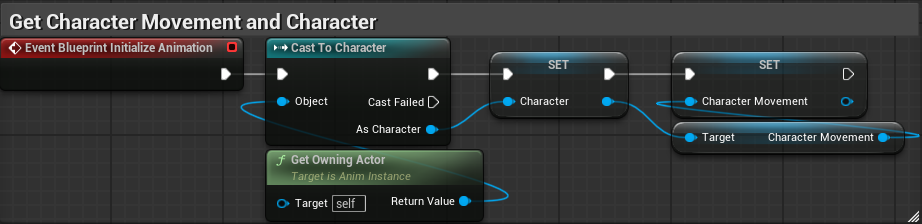
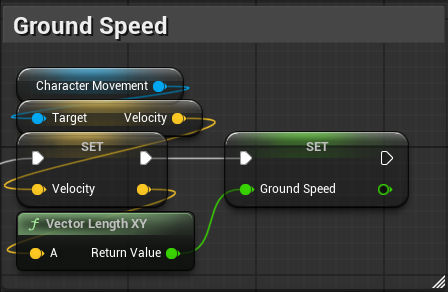
매 프레임마다 캐릭터의 수평 속도 가져오기 Ground Speed (Then 0 연결)
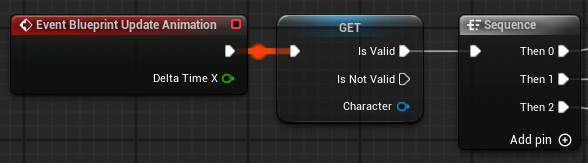
Event BlueprintUpdateAnimation
- 매 프레임마다 호출되어 애니메이션 로직에 필요한 값들을 계속 업데이트 해주는 이벤트
Is Valid (Character) - 캐릭터 변수 생성 후 우클릭 > Convert to Validated Get 클릭 후 생성
- 캐릭터가 정상인지 확인(캐릭터가 정상이 아니면 로직 수행 X)
Sequence
- 전부 실행
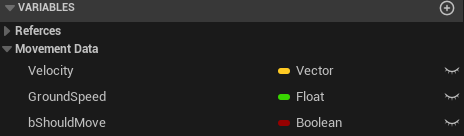
변수 생성
ABP_이름 블루프린트 열기 >
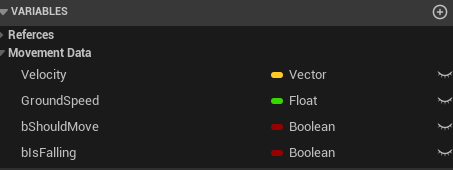
Velocity - 타입 Vector / 카테고리 Movement Data
GroundSpeed - 타입 Float / 카테고리 Movement Data

Get Character Movement
- 캐릭터의 Movement 를 가져옴
Get Velocity
- 노드로 캐릭터의 현재 속도를 벡터(X, Y, Z)로 가져옴
Set Velocity (Sequnece Then 0에 연결)
- 가져온 속도를 Velocity 변수에 저장
Vector Length XY
- Velocity의 X, Y 값만 사용해서 길이(수평 속도) 계산
Set Ground Speed
- Vector Length XY로 계산된 값을 Ground Speed 변수에 저장
매 프레임마다 캐릭터의 움직임 여부 저장 Should Move (Then 1 연결)
변수 생성
ABP_이름 블루프린트 열기 >
bShouldMove - 타입 Boolean / 카테고리 Movement Data
Get Current Acceleration
- Character Movement을 참조해서 현재 가속도 값을 가져옴
!= (Not Equal)
- 가속도의 값이 0이 아닌지 체크
AND
- GroundSpeed 값이 3 이상, Get Current Acceleration 값이 0이 아닐 경우 true
Set Should Move(Sequence Then 1에 연결)
- AND로 참 거짓 확인후 참일경우 두 값을 Should Move에 저장

매 프레임마다 캐릭터의 낙하 여부 확인 Is Falling (Then 2 연결)
변수 생성
ABP_이름 블루프린트 열기 >
bIsFalling- 타입 Boolean / 카테고리 Movement Data
Is Falling
- Character Movement를 참조해서 캐릭터가 현재 공중에 있는지 확인
Set Is Falling (Sequence Then 2에 연결)
- Is Falling 함수의 결과값을 Is Falling 변수에 저장

9. 애님 그래프에서 State Machine 설계하기
State Machine
캐릭터 상태에 따라 어떤 애니메이션을 재생하고 전환할지 정하는 구조
ex) Idle 상태이면 Idle 애니메이션 재생, 캐릭터가 움직이면 Walking 애니메이션으로 전환 등 로직 구성 가능
State Machine 설계
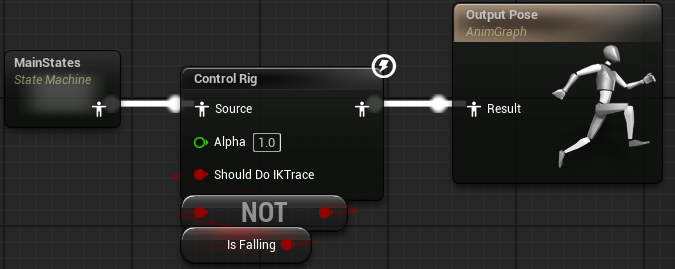
Control Rig
- State Machine에서 나온 포즈를 한번 더 가공하거나 Foot IK(지형에 발을 맞추는 기능) 적용하는 노드
Set Initial Transforms From Mesh
- 현재 애니메이션 포즈를 기준으로 IK 초기값 적용(기존 애니메이션 위에 자연스럽게 보정)
CR_Mannequin_BasicFootIK
- 발 위치를 지면에 맞춰주는 IK 기능
ShouldDoIKTrace (Use Pin 체크)
- 발 IK 적용 여부를 제어하는 변수
Anim Graph에서 우클릭 > State Machine 클릭해서 생성 > 이름 Main States로 지정 >
Control Rig 생성 > Main States와 연결 > Control Rig의 Details 창에서 Settings >
Set Initial Trnsforms From Mesh 체크 > 아래에 Control Rig Class를 CR_Mannequin_BasicFootIK로 지정 >
Input, Output 두 카테고리 다 ShouldDoIKTrace - Use Pin에 체크 > Get bIs Falling 변수를 Not Boolean과 연결 > Not Boolean를 Control Rig에 연결 > Control Rig과 Output Pose와 연결

State Machine - Locomotion 생성
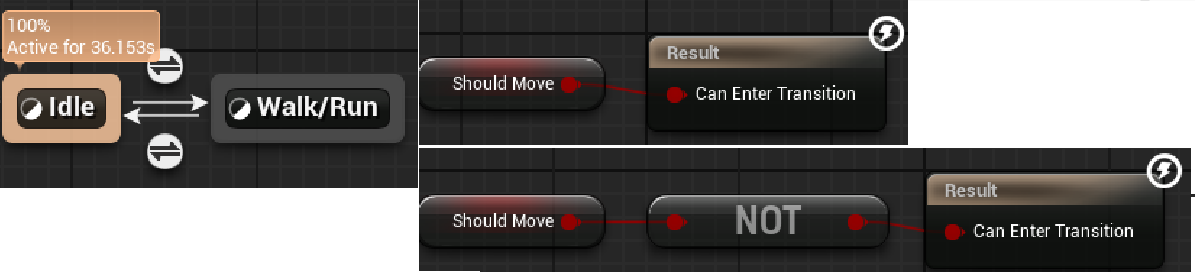
Anim Graph에서 우클릭 > State Machine 클릭해서 생성 > 이름 Locomotion으로 지정 > 더블클릭 >
Entry -> 드래그 > Add State 클릭 > 이름 Idle로 지정 > Idle 더블클릭 >
Output Animation Pose에 프로젝트 내 Idle 애니메이션 가져와서 연결 > MM_Idle Details > Loop Animation 체크 >

다시 돌아와서 Idle -> 드래그 > Add State 클릭 > 이름 Walk/Run으로 지정 > Walk/Run 더블클릭 >
Output Animation Pose에 프로젝트 내 WalkRun 애니메이션 가져와서 연결 > Get Ground Speed 변수를 연결

다시 돌아와서 Walk/Run 드래그 -> Idle 설정 > Idle에서 Walk/Run으로 가는 화살표 더블클릭 >
bShouldMove 변수와 Result 연결
다시 돌아와서 Walk/Run에서 Idle로 가는 화살표 더블클릭 >
bShouldMove 변수와 NOT 노드 연결 후 Result 연결
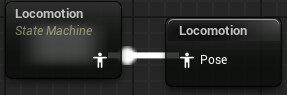
Anim Graph 처음 화면에서 생성한 Locomotion 드래그 -> New Save cached pose 클릭 > 이름 Locomotin으로 저장
이렇게 하면 Locomotion을 Main States에서 하나의 포즈로 가져와서 사용할 수 있음
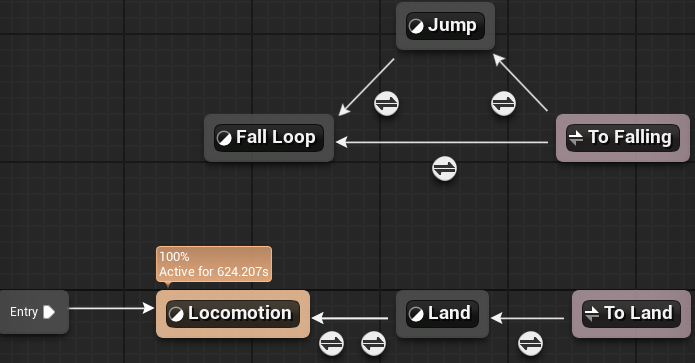
Main States 설계
Add State - Locomotion, Land, Jump, Fall Loop
Add State Alias - To Land, To Falling
생성 후 아래 사진처럼 설계
1. Locomotion
Locomotion 더블클릭 > 캐시 포즈로 저장한 Locomotion 생성 후 연결

2. Land
Apply Additive 생성 > Output Animation Pose와 연결 > 사용할 애니메이션(MM_Land)을 가져와서 Apply Additive에 연결 >
애니메이션 Details 창 > Loop Animation 체크 > 캐시 포즈로 저장한 Locomotion 생성 후 Apply Additive에 연결

3. Land - > Locomotion
Land -> Locomotion 두번 드래그 하면 두개의 조건 생성
첫번째 조건
bShouldMove 가져와서 Result와 연결(bShould Move == true)
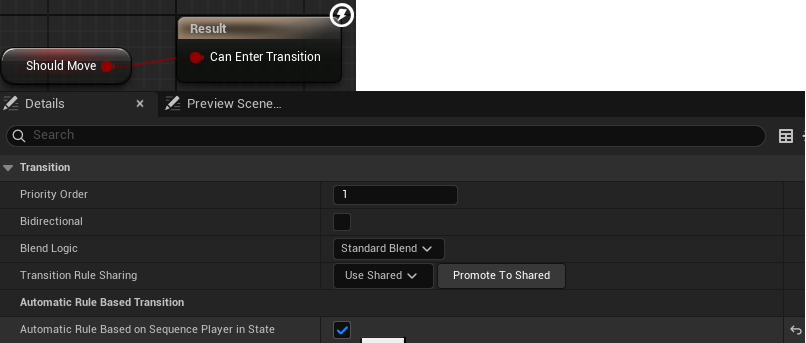
두번째 조건(애니메이션 시퀀스 재생 완료되면 자동으로 State가 변할수 있는 조건)
조건 한번 클릭 > Details 창 > Automatic Rule Based on Sequence Player in State 체크
4. Fall Loop
사용할 애니메이션(MM_Fall_Loop)을 가져와서 Output Animation Pose와 연결

5. Jump
사용할 애니메이션(MM_Jump)을 가져와서 Output Animation Pose와 연결
Jump - > Fall Loop 조건 Details 창 > Automatic Rule Based on Sequence Player in State 체크

6. To Land
한번 클릭 > Details 창 > Jump, Fall Loop에 체크
To Land -> Land 조건 더블 클릭 > bIsFalling 가져와서 NOT 노드와 Result와 연결(bIs Falling == false)

7. To Falling
한번 클릭 > Details 창 > Locomotion, Land 체크
To Falling - > Jump 조건 더블 클릭 > Velocity 변수를 가져와서(Split Struct Pin 해주기) Z축 값 > 100일 때, bIs Falling 변수를 가져와서 bIs Falling == ture 일 때 점프 상태로 인식하게 연결

To Falling -> Fall Loop 조건 더블 클릭 > bIs Falling 변수 가져와서 Result에 연결

이제 컴파일, 저장 후 BP_Character 더블클릭 > Animation > Anim Class > ABP_Charcter 지정 후 컴파일, 저장
이제 게임 플레이 하면 캐릭터 및 각종 상태 애니메이션 구현 완료!
'Unreal C++' 카테고리의 다른 글
| Unreal C++ 기초 6. InterFace 기반 아이템 클래스 생성 (0) | 2026.04.15 |
|---|---|
| Pawn 클래스 3D 캐릭터 만들기 (0) | 2026.04.14 |
| 리플렉션을 활용한 회전발판과 움직이는 장애물 만들기 (1) | 2026.04.08 |
| Unreal C++ 기초 4. 로그, 리플렉션, 함수, 리플렉션 (0) | 2026.04.07 |
| Unreal C++ 기초 3. 컴포넌트 멤버 변수 추가 및 메시, 머티리얼 할당 (1) | 2026.04.06 |


